Docs
Console
Sign-in
Console uses your organization’s Microsoft work account (directory SSO). Your organization must grant access to the Liminal Console application. There is no password login on the marketing site.
Identities
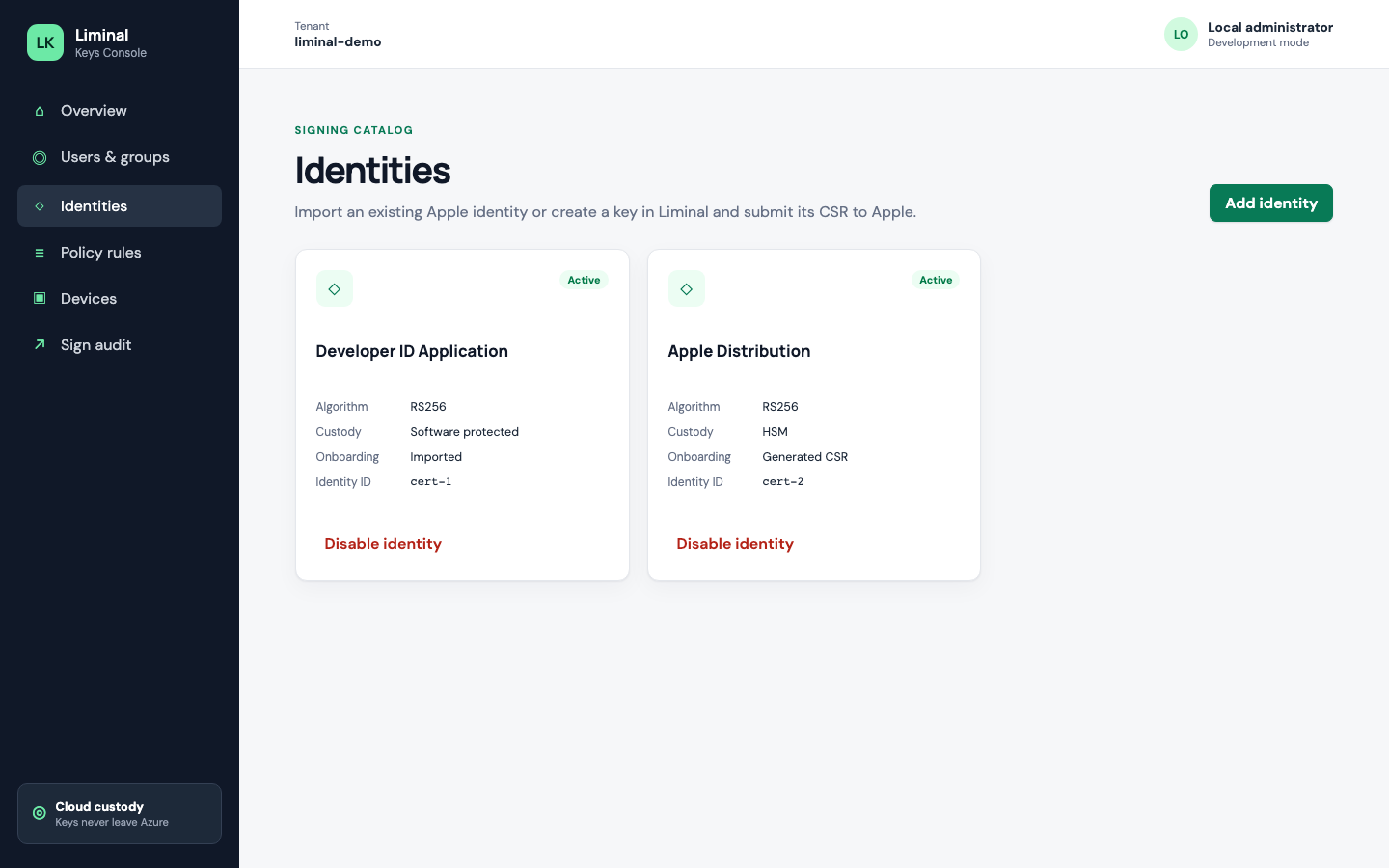
Onboard signing identities whose private keys stay in cloud HSM custody:
- Import — upload a password-protected PKCS#12 once; the private key moves into non-exportable custody
- Generate — create a key in custody, download a CSR, issue the certificate with Apple, then complete the identity
Pending, failed, or expired identities never appear on enrolled Macs and cannot be used in policy.
Devices & enrollment
List enrolled Macs, revoke a machine that leaves the fleet, and issue short-lived enrollment codes for LiminalKeysHost. Treat codes as secrets — do not post them to shared mailing lists. Revocation stops signs from that device on the next request.
Policy rules
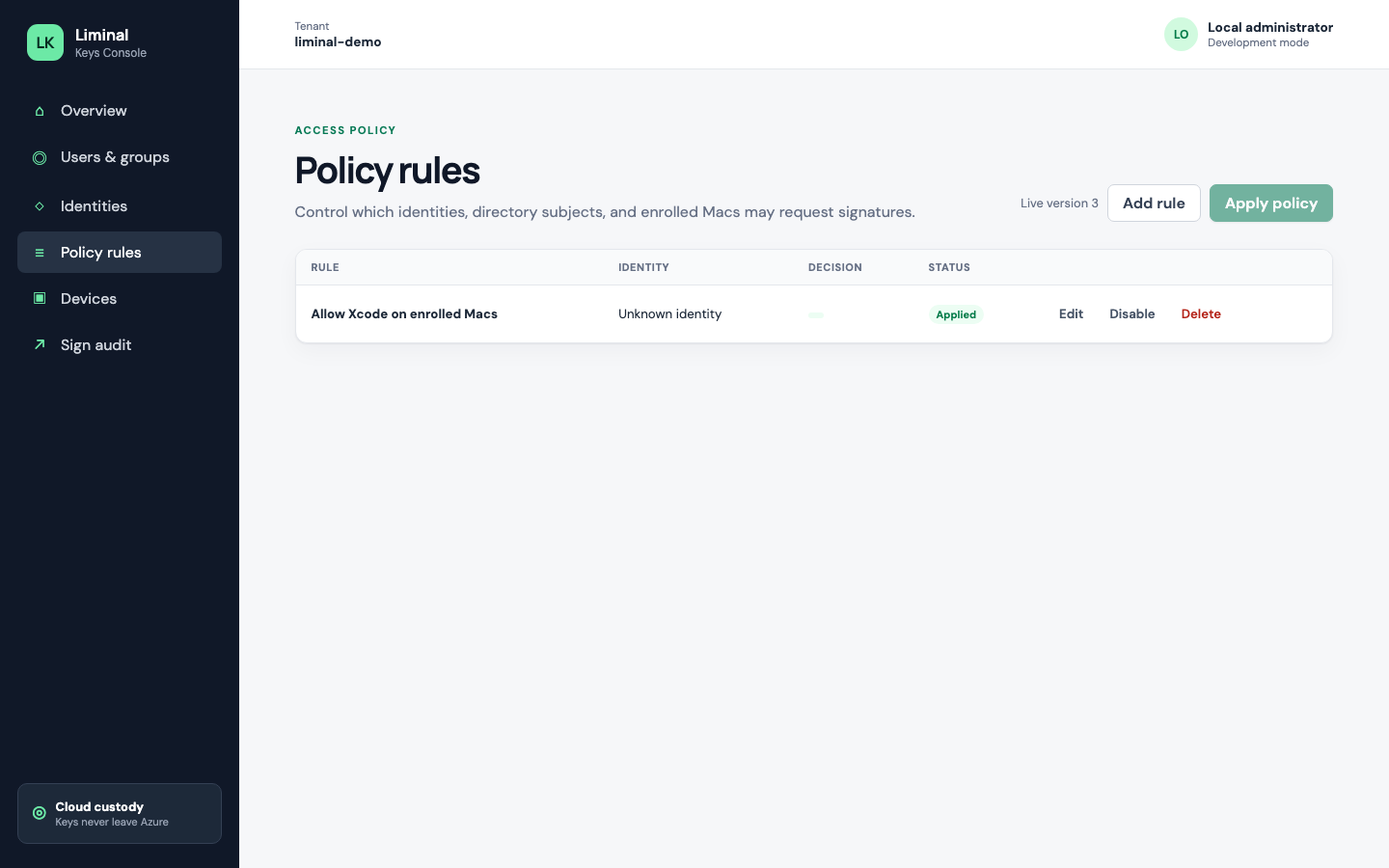
Rules are the operational control plane for signing. Each rule specifies:
- Identity — which virtual certificate may be used
- Subjects — users, groups, and/or enrolled Macs that may request a sign
- Operation — sign (v1)
- Confirmation — optional; when set, the Mac must approve before a signature is issued
- Validity window — optional start/end times
- Enabled — disabled rules do not grant signs even after apply
Edits are drafts until you click Apply policy. Until applied, a change MUST NOT grant signing. No matching applied rule means deny. If one applied rule would allow and another would deny the same request, the result is deny.
Sign audit
Review allow and deny outcomes with tenant, device, identity, and timing identifiers — without downloading digests, signatures, or key material.
Typical admin path
- Onboard an identity (import or generate + complete)
- Add policy rules (subjects, optional confirmation, optional window)
- Apply policy so the API and enrolled devices honor the live set
- Issue an enrollment code and enroll the Mac
- Watch Overview metrics and Sign audit for denials and successful signs